
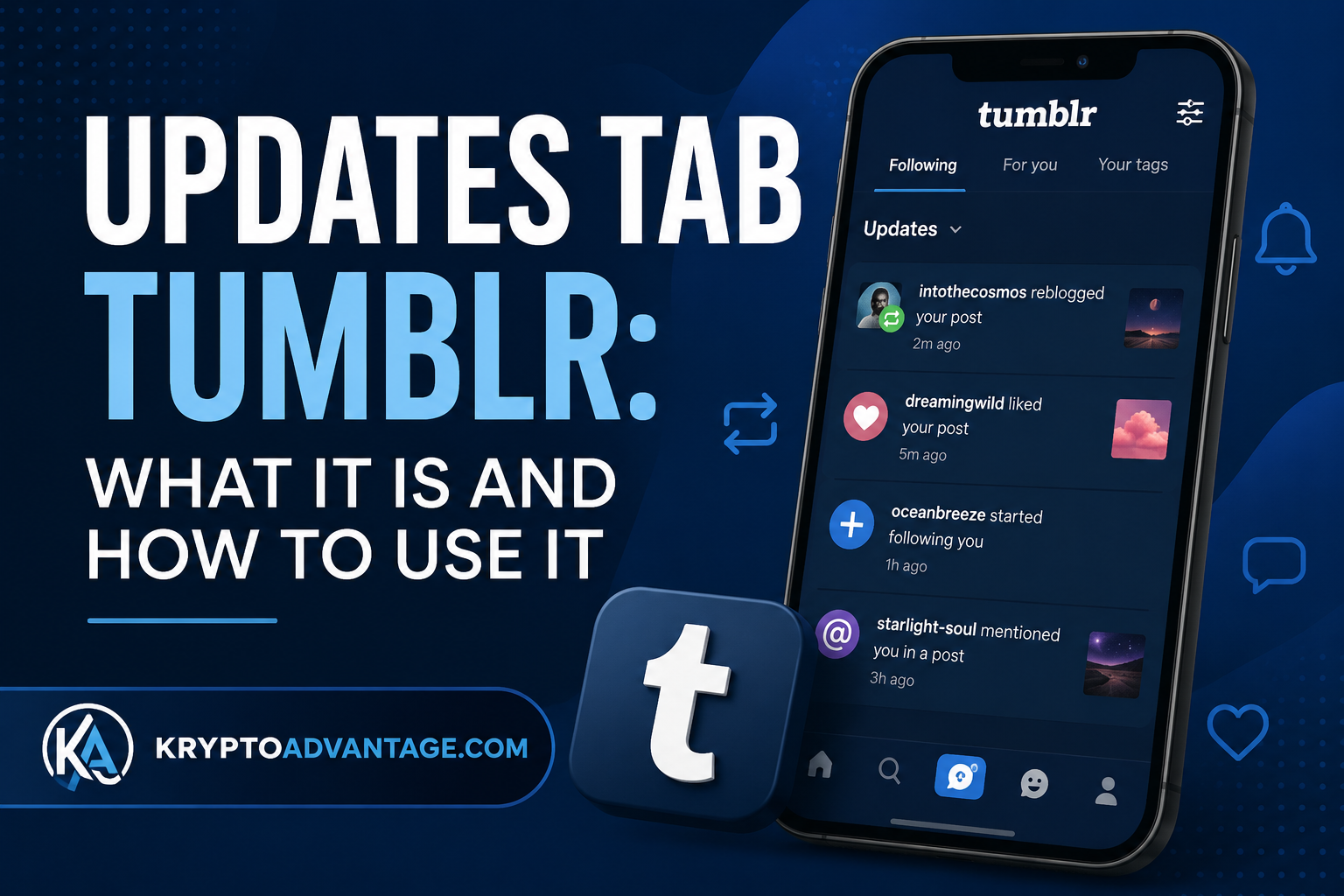
You open Tumblr and see a little red dot on an icon. Something happened, but what? That small badge is the updates tab Tumblr users see every day, and it holds more information than most people realize.
If you have ever wondered why that dot appears, what it means, or how to actually use it, you are not alone. This guide breaks it down in plain English. By the end, you will know exactly how the updates tab works, how it fits into the wider set of Tumblr dashboard features, and how to make it work for you instead of ignoring it.
Whether you are new to Tumblr or you have had a blog for years and never clicked that icon, this article covers everything you need.
Note: Tumblr updates its app and website design fairly often, so button names and icon positions can shift over time. The information below reflects how the feature generally works as of 2026. If your screen looks slightly different, check Tumblr’s official Help Center for the most current layout.
What Is the Updates Tab on Tumblr?
The updates tab (sometimes called the Activity tab) is where Tumblr collects your notifications. Think of it as your blog’s inbox for interactions.
Every time someone likes your post, reblogs it, follows you, replies, or mentions your username, Tumblr logs it here. Instead of digging through your dashboard trying to figure out what happened, you check one spot.
Why Tumblr Added This Feature
Tumblr is built around interaction. People reblog posts, add their own comments, tag friends, and revive old posts years after they were made. Without a central place to track this, users would have to scroll endlessly to find out who engaged with their content.
The updates tab solves that problem. It pulls everything into one feed, so you do not have to hunt for it manually.
What Shows Up in the Updates Tab
Here is what typically appears:
- Likes – someone tapped the heart on your post
- Reblogs – someone shared your post to their own blog
- New followers – someone started following your blog
- Replies – comments left directly on your post
- Mentions – someone tagged your username in their post
Not every interaction triggers a big alert. Small badges or numbers are Tumblr’s way of nudging you back to check your notifications.
Where to Find the Updates Tab
The location depends on whether you are using the app or the website. This trips up a lot of new users, so let’s clear it up.
On the Mobile App
Look at the bottom navigation bar. You will usually see an icon shaped like a bell, a heart, or an activity graph, depending on your app version. Tap it, and your updates open.
If you manage more than one blog, remember that activity is tied to one blog at a time. You need to switch to the correct blog first, or you will end up staring at an empty feed and wondering where your notifications went.
On Desktop or Web Browser
On the web version, the activity icon sits in the left sidebar, usually near your dashboard and messages. Clicking it opens a feed similar to the mobile version.
Tumblr has changed its web layout more than once over the years, so if the icon looks different from what a friend describes, that is normal. Interfaces get updated, and not everyone updates their app at the same time.
How the Updates Tab Fits Into Tumblr Dashboard Features
The updates tab is just one piece of a bigger system. Tumblr’s dashboard is packed with different Tumblr dashboard features, and understanding how they connect makes the whole platform easier to use.
The Dashboard Tabs You Can Choose From
Tumblr lets you pick from several dashboard views, including:
- Following – posts from blogs you follow, shown in order
- For You – posts Tumblr thinks you will like, based on your activity
- Your Tags – posts pulled from tags you follow
- Tumblr TV – a simple, full-screen feed of gifs and videos
You can enable or disable these tabs and choose which one loads by default. This is separate from the updates tab, but it lives in the same neighborhood of the app, which is why people sometimes mix them up. (For a full breakdown of each tab, see our guide.)
How Notifications and Dashboard Tabs Work Together
If you pin “For You” as your default tab, you may not see the little blue notification badge next to the Home label that normally tells you new posts are waiting. That badge behavior changes depending on your settings, so if something feels off, check your pinned tab first.
This connection matters. A lot of confusion around the updates tab actually comes from dashboard tab settings, not the updates tab itself.
How to Use the Updates Tab Effectively
Knowing where the tab is only gets you halfway. Here is how to actually use it well.
Checking It Regularly Without Getting Overwhelmed
If you run a busy blog, notifications can pile up fast. Instead of checking every few minutes, try setting a routine. Once in the morning and once at night is usually enough for most casual users.
Creators and fandom blog owners often check more often, since they use the tab to track how their community is reacting to a post in real time.
Filtering What You See
Some versions of the app let you limit alerts to only the people you follow. This cuts down on noise, especially if your blog gets attention from accounts you do not recognize.
Understanding Badges That Do Not Match What You See
Sometimes Tumblr shows a badge, but when you open the tab, nothing new is there. This usually happens because the activity was filtered, delayed, or the original post was deleted. It is annoying, but it is a known quirk, not a bug you need to worry about fixing yourself.
Managing Notifications From the Updates Tab
You do have some control here, even if it is not complete control.
Turning Off Push Notifications
If your phone keeps buzzing, you can turn off push notifications in your app settings. This stops the alerts from interrupting you throughout the day.
However, this does not remove the activity from showing up inside the app itself. Turning off push notifications just means your phone stays quiet, not that Tumblr stops tracking the interaction. (For a full walkthrough of every option, check our Tumblr notification settings and privacy guide.)
Muting Specific Posts
You can mute a post to stop getting new alerts about it. For example, if one of your posts suddenly goes viral, muting it stops the constant stream of new notifications.
Keep in mind that muting does not erase the activity that already happened. It only stops new alerts going forward.
Advantages and Disadvantages of the Updates Tab
Like any feature, the updates tab has real upsides and a few limits worth knowing before you rely on it fully.
Advantages
- Saves time – you do not have to scroll through your whole dashboard to find out who liked or reblogged your post.
- Keeps you connected – you catch new followers and replies quickly, which helps if you run a community or fandom blog.
- One central place – likes, reblogs, follows, replies, and mentions all show up together instead of being scattered.
- Some control – you can mute posts or limit alerts to people you follow, which helps cut down on noise.
Disadvantages
- Blog-specific confusion – if you manage multiple blogs, you have to switch between them to see the right activity, which is easy to forget.
- Mismatched badges – a notification badge sometimes shows even when there is nothing new to see, which can feel unreliable.
- Limited customization – you cannot filter out every type of activity; some alerts you simply cannot turn off from your end.
- Interface changes – since Tumblr updates its app and web layout from time to time, the tab’s look and exact location can shift, which may confuse users switching between devices.
Common Mistakes People Make With the Updates Tab
A few small misunderstandings cause most of the confusion around this feature.
Expecting It to Show Only Likes and Reblogs
Some users assume the updates tab is just for likes and reblogs. In reality, it also covers follows, replies, and mentions. If you are only checking for likes, you might miss a reply that actually needs a response.
Forgetting Which Blog Is Active
If you run multiple blogs, this is the number one source of confusion. Activity is blog-specific. Switch blogs, and your updates tab shows completely different information. (See our guide on how to manage multiple Tumblr blogs for a step-by-step walkthrough.)
Confusing It With the Inbox
The updates tab and your Tumblr inbox are not the same thing. The inbox holds messages people send you directly, along with submissions. The updates tab tracks interactions with your existing posts. They work side by side, but they are not interchangeable.
FAQs About the Updates Tab on Tumblr
What does the updates tab on Tumblr actually track?
It tracks likes, reblogs, new followers, replies, and mentions tied to your blog. It works like a notification center specifically for your Tumblr activity.
Why does my updates tab show a number but nothing new?
This usually happens when the related post was deleted, the activity was filtered, or there was a delay in Tumblr’s system. It is a common quirk and not something you can fix from your end.
Can I stop notifications from the updates tab?
Yes, you can turn off push notifications in your settings so your phone does not buzz. However, the activity will still appear inside the app when you check it manually.
Why do I see different updates tab layouts on different devices?
Tumblr updates its app and website separately, and not everyone installs updates at the same time. This means friends comparing screens might see slightly different icons or layouts, even though the feature works the same way underneath.
Does the updates tab work differently if I have multiple blogs?
Yes. Activity is tied to one specific blog at a time. You need to switch to the correct blog in your account to see updates related to that particular blog.
Conclusion
The updates tab Tumblr users rely on is a simple but powerful tool once you understand it. It keeps track of likes, reblogs, follows, replies, and mentions, all in one place, so you are not left guessing what happened to your posts.
Pair it with the other Tumblr dashboard features, like your Following and For You tabs, and you get a much clearer picture of your blog’s activity without extra effort. Take a few minutes today to open your updates tab, check your notification settings, and see what you might have missed. Small habits like this make using Tumblr a lot less confusing.
Disclaimer
This article is for general informational purposes only. It is independently written and is not affiliated with, endorsed by, or officially connected to Tumblr or Automattic Inc. “Tumblr” and related logos are trademarks of their respective owner.
Tumblr regularly updates its app and website, so feature names, icon positions, and available settings can change without notice. The steps and descriptions in this guide reflect how the updates tab generally works as of 2026, but your exact experience may differ slightly depending on your device, app version, and account settings. For the most accurate and current information, always refer to Tumblr’s official Help Center.