
Ever lost a file because your laptop crashed right before a deadline? It happens to almost everyone at least once.
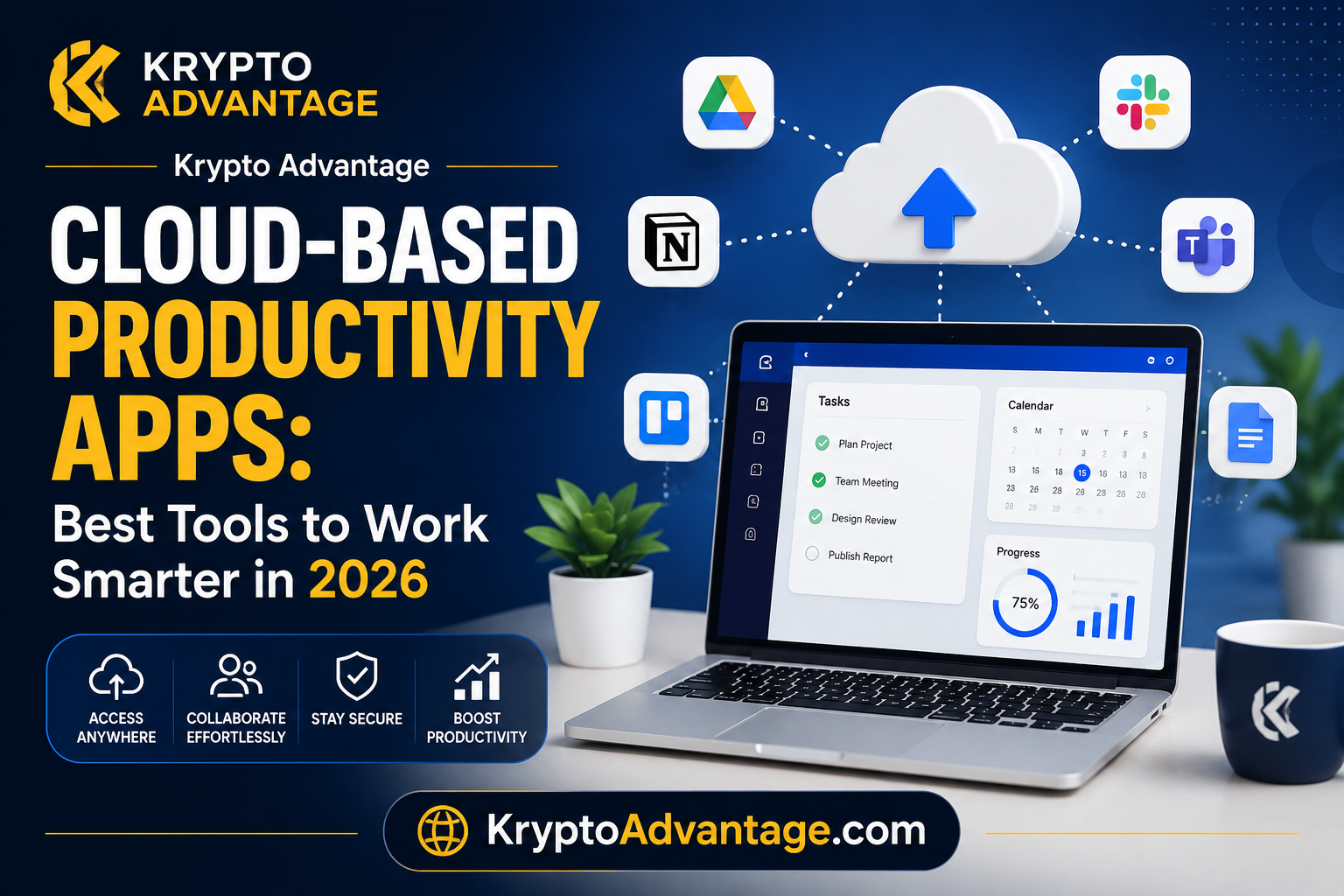
That’s exactly the problem cloud-based productivity apps solve. Instead of saving files to one device, these tools store your work online, so you can reach it from your phone, tablet, or any computer.
In 2026, more people work from home, from coffee shops, and from different time zones than ever before. Because of this shift, cloud-based productivity apps aren’t just a nice extra anymore. They’re becoming the normal way people write, plan, and collaborate. This guide walks you through the best options, how to pick the right one, and simple tips to get more done with less stress.
A quick note before we start: pricing, free-tier limits, and features for these apps change often. The details below reflect how each tool generally works, but it’s worth checking each provider’s official website for current plans before you commit.
What Are Cloud-Based Productivity Apps?
Cloud-based productivity apps are tools that run on the internet instead of your hard drive. You open them through a browser or a small app, and your work saves automatically to a remote server.
This means you don’t need to email files to yourself or carry a USB drive. Your documents, spreadsheets, and to-do lists are simply “there” whenever you log in, on any device.
How They Differ From Traditional Software
Traditional software, like an old, boxed version of Microsoft Office, lives on one computer. If that computer breaks, your files might be gone too, unless you backed them up separately.
Cloud apps store everything online instead. For example, if you write a report in Google Docs on your laptop, you can open the same report on your phone five minutes later. Nothing gets lost, and nothing needs to be transferred manually.
Why This Matters More in 2026
Remote work and hybrid schedules are common in many industries now. Teams often span several cities or countries, not just different floors of the same office.
Because of this, cloud collaboration tools have become the glue that holds distributed teams together. They let people edit the same file, comment on ideas, and track tasks without constant back-and-forth emails.
Top Cloud-Based Productivity Apps to Use in 2026
There’s no single “best” app for everyone. However, a few tools stand out for their reliability, features, and ease of use. Here’s a closer look at each one, including the trade-offs, so you can judge what actually fits your work.
Google Workspace
Google Workspace bundles Gmail, Docs, Sheets, Slides, Drive, and Meet into one connected system. Multiple people can edit a document at the same time, and you can literally watch a teammate’s cursor move as they type.
Pros:
- Real-time editing feels smooth and reliable
- Works well on almost any device or browser
- Free tier is generous for individuals and students
Cons:
- Advanced admin and security controls are mostly in paid business tiers
- Offline access needs to be set up in advance; it isn’t automatic
Microsoft 365
Microsoft 365 takes familiar tools like Word, Excel, and Outlook and moves them into the cloud, alongside Teams for video calls and chat. It’s a natural fit for companies that already run on Windows and need strong document formatting.
Pros:
- Deep formatting control in Word and Excel, useful for detailed reports
- Strong security and compliance options for regulated industries
- Familiar interface for anyone who has used Office before
Cons:
- Can feel heavier and more complex than newer, simpler tools
- Full features usually require a paid subscription
Notion
Notion works like a flexible digital notebook. You can build to-do lists, project trackers, and wikis, then arrange them however fits your workflow.
Pros:
- Highly customizable; one workspace can replace several separate apps
- Popular free plan for individuals and small teams
- Good for combining notes, docs, and light task tracking in one place
Cons:
- Steeper learning curve than a simple to-do list app
- Can get disorganized quickly without some upfront structure
Slack and Microsoft Teams
Both Slack and Microsoft Teams focus on messaging and quick collaboration rather than document creation. Think of them as a digital office hallway, where quick questions get answered instead of piling up in an inbox.
Pros:
- Faster than email for quick, informal questions
- Connects with many other cloud collaboration tools and file sources
- Searchable message history keeps past conversations easy to find
Cons:
- Constant notifications can become distracting without careful settings
- Important information can get buried in fast-moving channels
Trello and Asana
Trello uses a simple card-and-board system, similar to sticky notes on a wall, to track tasks. Asana offers a similar idea but with more structure, which helps teams managing several projects at once.
Pros:
- Visual boards are easy to understand, even for non-technical users
- Free versions cover most needs for small teams
- Good fit for teams new to formal project management
Cons:
- Can become cluttered on very large or complex projects
- Advanced reporting and automation usually require a paid plan
Zoho Workplace and Dropbox
Zoho Workplace offers an alternative office suite at a lower cost, which appeals to small businesses watching their budget. Dropbox focuses mainly on file storage and sharing, and it still works well for teams that just need a reliable place to keep and send large files.
Pros:
- Generally more affordable than the bigger suites
- Dropbox is simple to learn if you only need file storage and sharing
- Zoho Workplace bundles several office tools for one lower price
Cons:
- Smaller ecosystem of integrations compared to Google or Microsoft
- Fewer built-in AI features at this time
Why Cloud Collaboration Tools Are a Game-Changer
Cloud collaboration tools solve a problem that used to slow every team down: version confusion. Most people know the feeling of opening a file named “Report_Final_v3_ACTUAL_final.docx” and not knowing which one is real.
With cloud tools, there’s usually just one live version. Everyone edits the same file, and changes appear for the whole team almost instantly.
Real-Time Editing Saves Time
Instead of sending a document back and forth by email, team members can jump into the same file together. One person can fix numbers in a spreadsheet while another writes notes beside it.
This cuts down the long email chains that used to eat up entire afternoons.
Access From Anywhere
Because your files live online, you’re not tied to one device. A student can start an essay on a school computer and finish it on their phone during a bus ride home.
For remote teams, this means someone in a different time zone can review work while others are asleep, keeping projects moving without everyone needing to be online at once.
Better Communication and Fewer Mistakes
Comments, tags, and shared calendars are built into most cloud collaboration tools. Team members can leave notes directly on a file instead of writing a separate email to explain what needs to change.
As a result, less information gets lost between people, and fewer small mistakes slip through.
How to Choose the Right Productivity App for You
With so many options, picking one can feel overwhelming. However, narrowing it down is easier when you focus on your actual needs, not just flashy features.
Consider Your Team Size and Budget
A solo freelancer doesn’t need the same setup as a 200-person company. Smaller teams often do fine with free plans from Google Workspace, Trello, or Notion.
Larger organizations, on the other hand, may need the added security and admin controls that usually come with paid tiers of Microsoft 365 or Google Workspace.
Think About What You Actually Do Daily
If most of your work involves writing and editing documents, prioritize apps with strong word processing, like Google Docs or Microsoft Word. If you manage many moving tasks instead, a board-style tool like Trello or Asana will likely serve you better.
In short, match the tool to the job instead of picking whatever name is most popular.
Check for Easy Integration
Look for tools that connect smoothly with what you already use. For example, if your team already lives in Slack, choosing project tools that link directly with Slack will save setup time later.
Don’t Ignore Security
Since your data lives on someone else’s servers, it helps to check basic security features before signing up. Look for options like two-factor authentication and a clear data backup policy, and read the provider’s privacy page if your work involves sensitive information.
Tips to Work Smarter With Cloud Productivity Apps in 2026
Owning the right tool is only half the job. A few small habits make a bigger difference than most people expect.
Keep Your Folder Structure Simple
Messy folders slow everyone down, even in the cloud. Use clear, consistent names for folders and files so teammates can find things without having to ask.
Turn On Notifications Wisely
Too many alerts create noise, and important messages can hide inside that noise. Turn off notifications for channels or documents you don’t check daily, and keep alerts only for what truly needs quick attention.
Use Templates to Save Time
Most cloud apps, including Notion and Google Workspace, offer templates for common tasks like meeting notes or project plans. Reusing a template beats rebuilding the same layout from scratch every week.
Review App Permissions Regularly
As teams grow, people change roles or leave altogether. Check sharing settings every few months so former team members don’t still have access to sensitive files.
Frequently Asked Questions
What are cloud-based productivity apps?
Cloud-based productivity apps are tools like Google Workspace or Microsoft 365 that store your files and work online instead of on one device. You can access them from any browser, on any computer or phone, as long as you’re logged in.
Are cloud-based productivity apps safe to use?
Most major providers, including Google and Microsoft, use strong encryption and offer features like two-factor authentication. That said, safety also depends on your own habits, such as using strong passwords and regularly reviewing who has access to your files.
What is the difference between cloud storage and cloud productivity apps?
Cloud storage, like Dropbox, mainly focuses on saving and sharing files. Cloud productivity apps go further by letting you create, edit, and collaborate on that content directly, often in real time with other people.
Which cloud collaboration tools are best for small teams?
Small teams often start with free versions of Google Workspace, Trello, or Notion, since these cover the basics without added cost. As the team grows, upgrading to paid plans usually adds more storage and stronger admin controls.
Do I need internet access to use these apps?
Most cloud apps need an internet connection to sync changes, but several, including Google Docs and Microsoft 365, offer limited offline modes. Work done offline typically syncs automatically once you’re back online.
Conclusion
Cloud-based productivity apps have changed how people write, plan, and collaborate, whether you’re a student juggling assignments or a team spread across different cities. From Google Workspace and Microsoft 365 to Notion, Trello, and Slack, there’s a tool suited to almost every kind of work, each with its own strengths and trade-offs.
The right choice depends on your team size, budget, and daily tasks, not on which app is trending. Try a free plan first, see how it fits your workflow, and build from there.
If you’re ready to work smarter in 2026, pick one cloud collaboration tool from this list and test it for a week. You might be surprised how much time you save.
Disclaimer: App features, pricing, and free-tier limits mentioned in this article can change at any time. Always check each provider’s official website for the most current information before making a decision.